
Do you have a sense of disconnection from your online meeting as you go between tabs or applications on the screen? Would you like to continue participating in your video meeting while also browsing your system?
Picture-in-Picture is now available! With Zoho Meeting's Picture-in-Picture functionality, you may continue to participate in your online meeting in a floating window even as you navigate to other browser tabs or computer programs. Android smartphones and browser-based meetings both now support the capability. Also there are many other features of Zoho CRM that you can try.
Picture-in-Picture: What is it?
Picture-in-Picture (PiP) is a multi-window display option that allows you to navigate between and use other apps while an application is running in a minimized floating window.
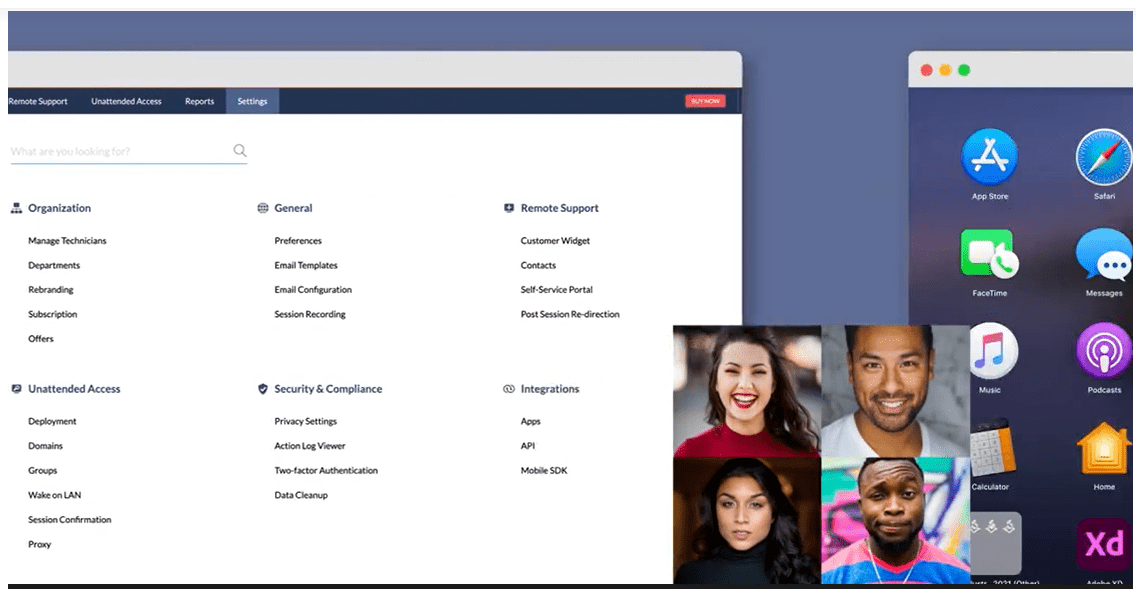
A window that is minimized will enhance your meeting experience.
You can navigate between different folders on your computer or multiple tabs on your browser (Google Chrome, Microsoft Edge), all while keeping connected to your online meeting in a floating window, if Picture-in-Picture is enabled on Zoho Meeting.
What can I do with the floating window?
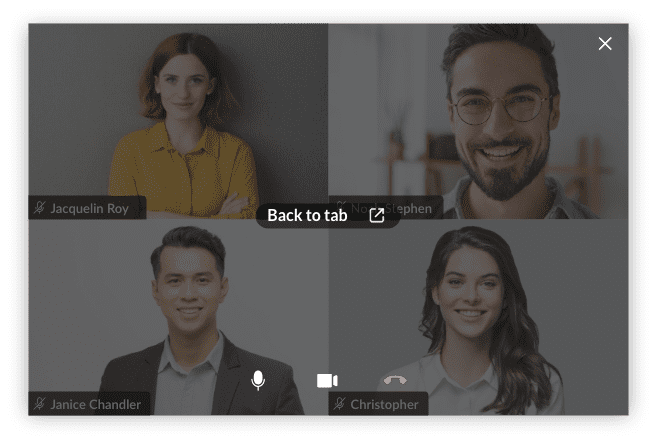
For the ongoing meeting, you can use a floating window to:
Mute or unmute to communicate with other participants
Switch the meeting's video feed on or off.
Close the online conference
Return to the meeting window at last!
How should Picture-in-Picture be used?
Avoid missing out on video by using Picture-in-Picture to ace client meetings and professional presentations. Professional sessions will benefit from the ability to monitor your client's video stream while simultaneously sharing your presentation.
Reduced but not closed As you multitask with other applications and access other files on the system, get the full experience of your online conference in a smaller window. You don't have to shut your meeting window each time you switch to a new application while using PiP.
Android's Picture-in-Picture feature
The PiP capability is available in the Android mobile version for Zoho Meeting as well. While continuing to be connected to your remote meeting, you can switch between other mobile applications or check material on the home screen.
How can I make Picture-in-Picture available during my meetings?
Every user has access to Picture-in-Picture on browsers and Android mobile devices. You can switch the configuration to start Picture-in-Picture during every meeting by simply clicking to enable the feature.
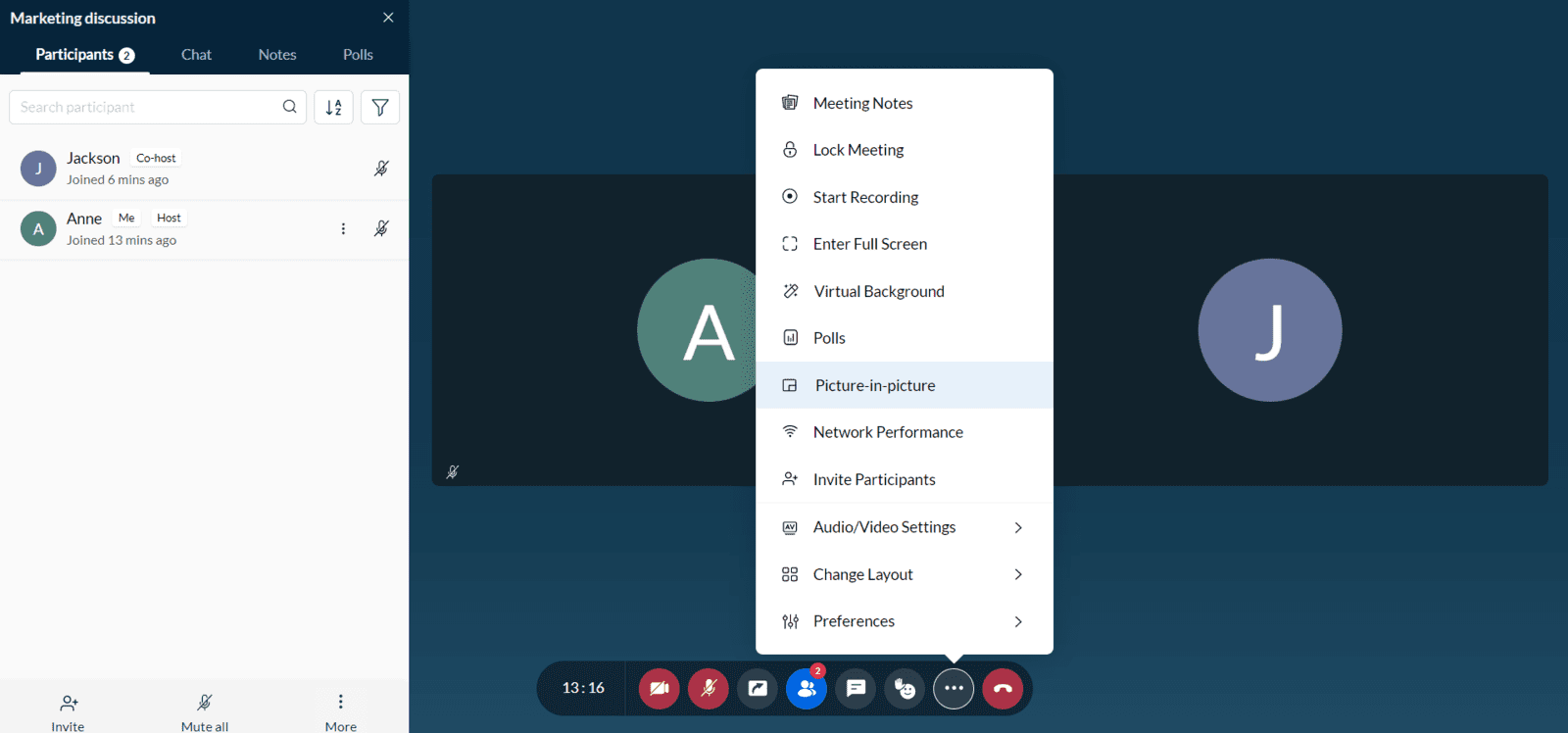
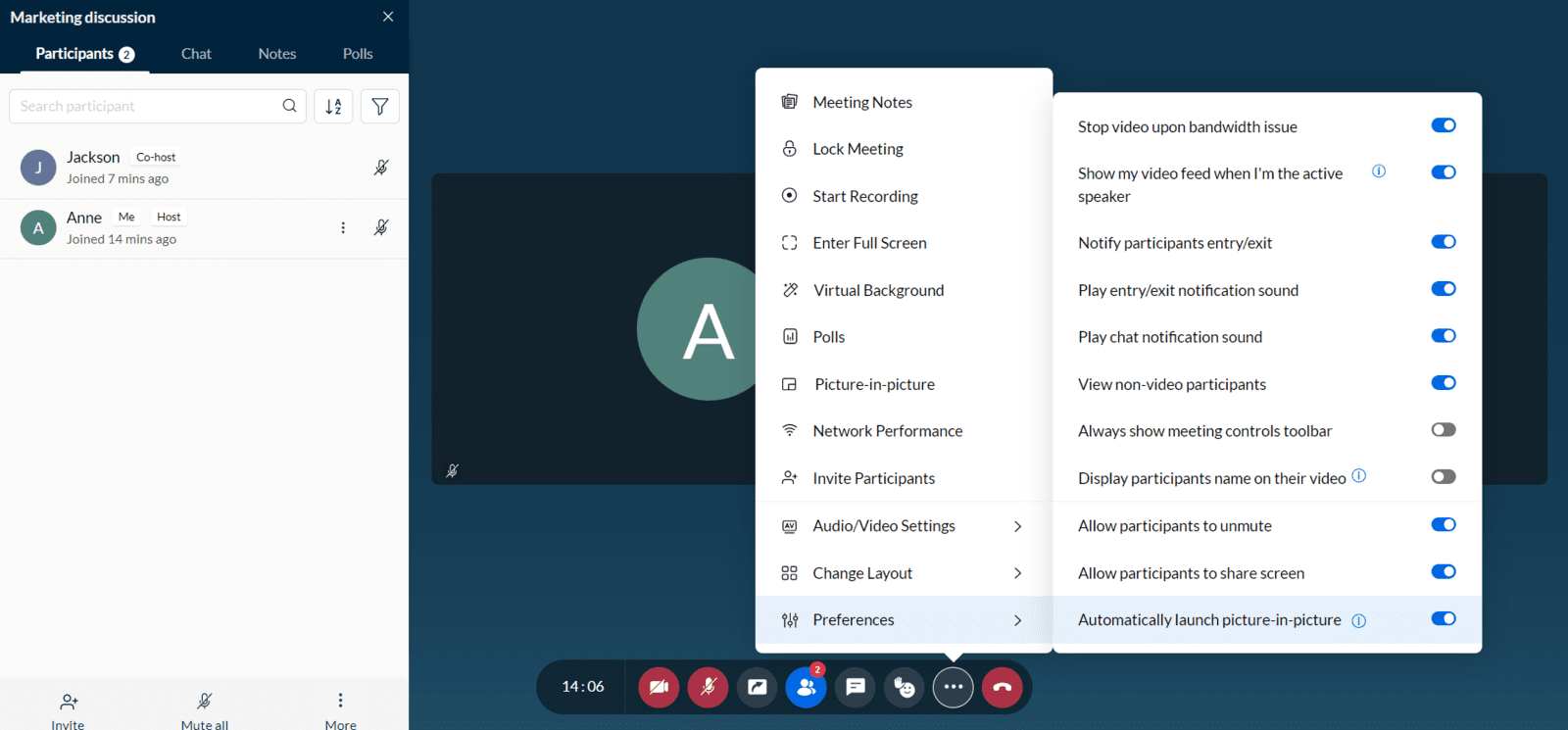
To rapidly open the floating window, select More from the meeting toolbar and click Picture-in-Picture. Additionally, you can move the floating window to any corner of the screen to avoid blocking your view of other running programs.
Automatically start Picture-in-Picture
With just one click, you may select to instantly start Picture-in-Picture for each of your meetings. In future meetings, the Picture-in-Picture window will open whenever you switch to a new tab or program if Automatically launch picture-in-picture is enabled.
Picture-in- The image is only the very tip of the iceberg. In order to support your virtual meetings, zoho have been working on a ton more features. We're eager for you to use the PiP feature right away and improve your online meeting experience. Connect with trigya Innovations, a Zoho CRM Consultant if you have any querries regarding the feature.