
Zoho Meeting is an online video conferencing platform. It is a powerful web video conferencing app built for your business collaboration. Zoho Meeting helps to manage everything, right from small interactive meetings to large engaging webinars. It gives single users as well as small and large size organizations, a quick and easy way to host and conduct secure and cost-effective online meetings and webinars.
As Zoho always thrives on doing the best and keeping their apps up-notch, they have just introduced a fun feature update on Zoho Meeting. This feature will help a lot of people who work from home to maintain a professional or casual virtual background depending on the need.
Virtual Background
The Virtual Background feature will allow you to display an image or gif as your background during a meeting, or you can use nothing and simply smudge the background. This feature works best ideally with a green screen and attire lighting to help Zoho Meeting to notice the difference between you and your backdrop. You can only change virtual backgrounds during video conferencing.
The most effective method to enable Virtual Background
- To enable the Virtual Background highlight for your record:
- Sign in to the Zoho Meeting web portal
- Click Settings on the left pane.
- Under My Settings, explore the Virtual Background choice and check that the setting is enabled. Assuming that the setting is disabled, click the toggle button to enable it.
The most effective method to apply a Virtual Background during meetings
- Start or join your meeting.
- On the Join page, select the magic wand symbol on the video feed. On the off chance that you don't have the symbol check to assume the setting is enabled for you.
- Click on a picture or gif to choose the ideal virtual foundation, then, at that point, click Okay.
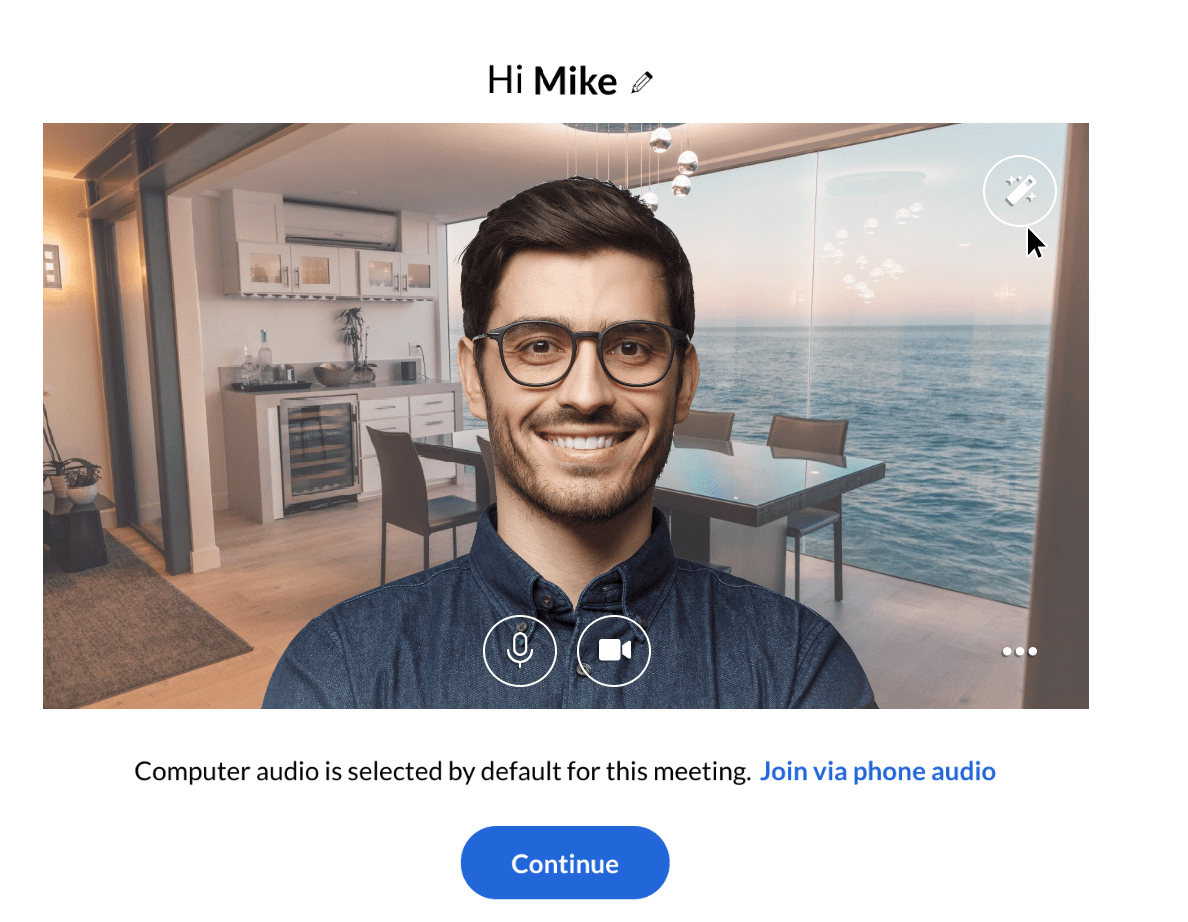
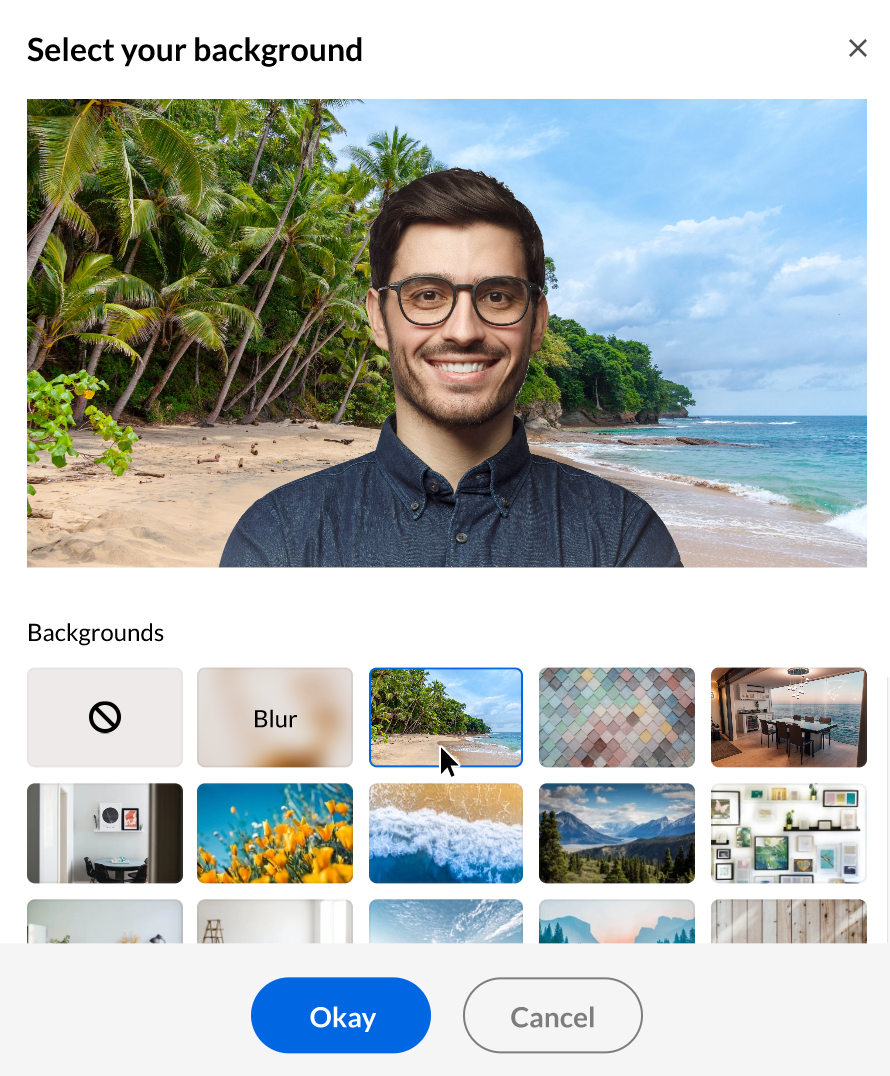
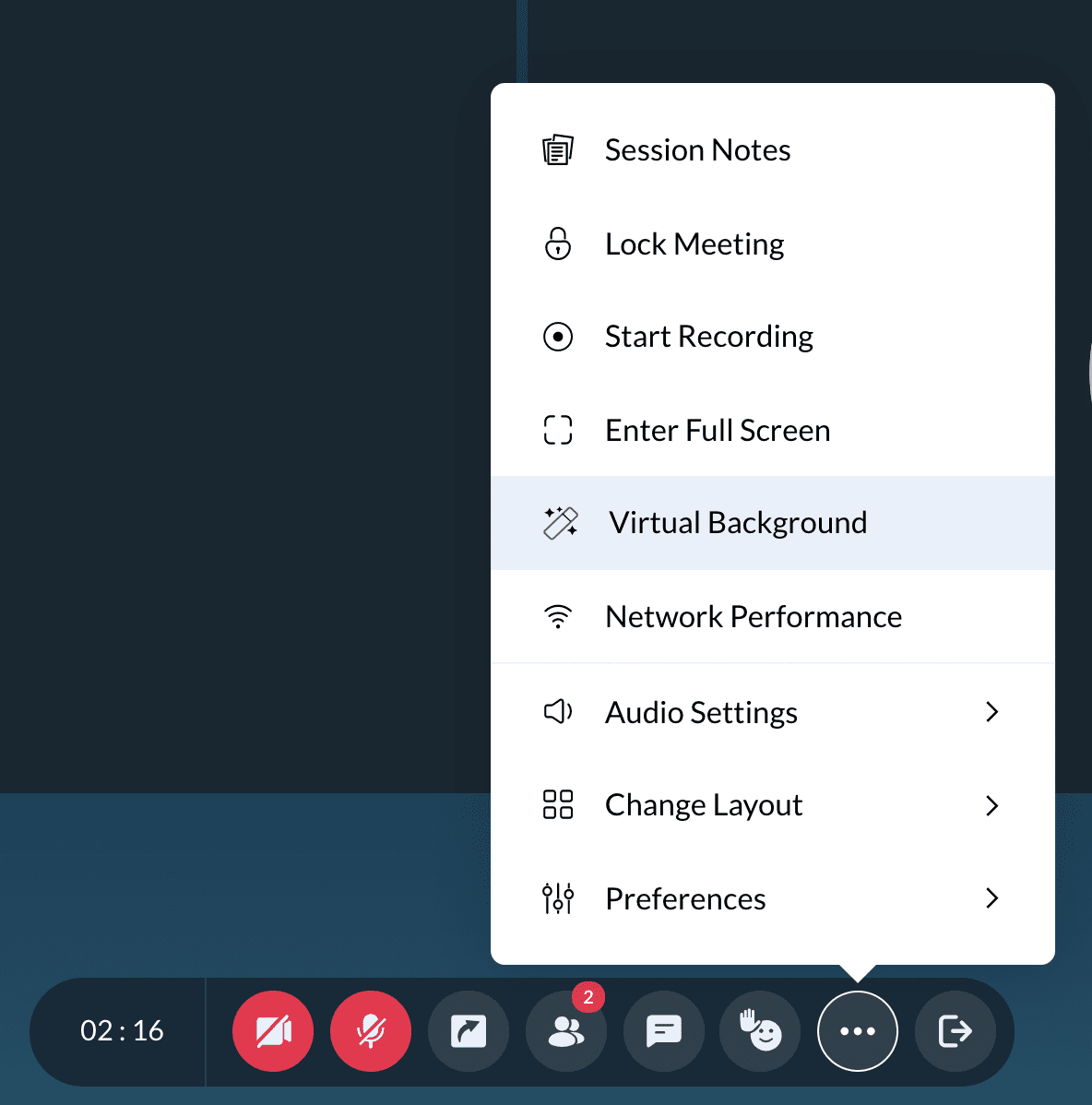
- After entering the meeting, you can change the backdrop by selecting the Virtual Background option from the More menu (three dots) in the meeting toolbar or self video feed.
The most effective method to disable Virtual Background
- Open the virtual foundation choice again from the More menu (three spots) in the meeting toolbar or self video feed.
- Pick the None choice and snap Okay.
So, what do you think about this amazing feature, its fun, right! Now you can sit or stand anywhere and take your meeting without worrying about the background or somebody running behind creating a distraction. These all problems are sorted. Trigya Innovations find this new feature so exciting and we have used it, it makes the meeting with the client professional and video conference with co-worker fun. Go try it for yourself and let us know about your experience.